 RemoteDeck
Every server you look after, in one window.
RemoteDeck keeps your Linux and Windows servers, switches, routers and cloud accounts in one list. Double-click one and it opens right there: a terminal, a remote desktop, a file browser or a web console.
Free. Windows 10 and 11, 64-bit Intel/AMD or Arm. Current version: build 2460.
- SSHLinux and Unix terminals
- SFTPFiles on SSH servers
- RDPWindows desktops
- TELSwitches and routers
- FTPFTP and FTPS servers
- VNCDesktops through your VNC viewer
- WEBWeb consoles: Proxmox, routers, iLO
- CLIAzure, AWS and Google Cloud CLIs
- AZAzure Cloud Shell
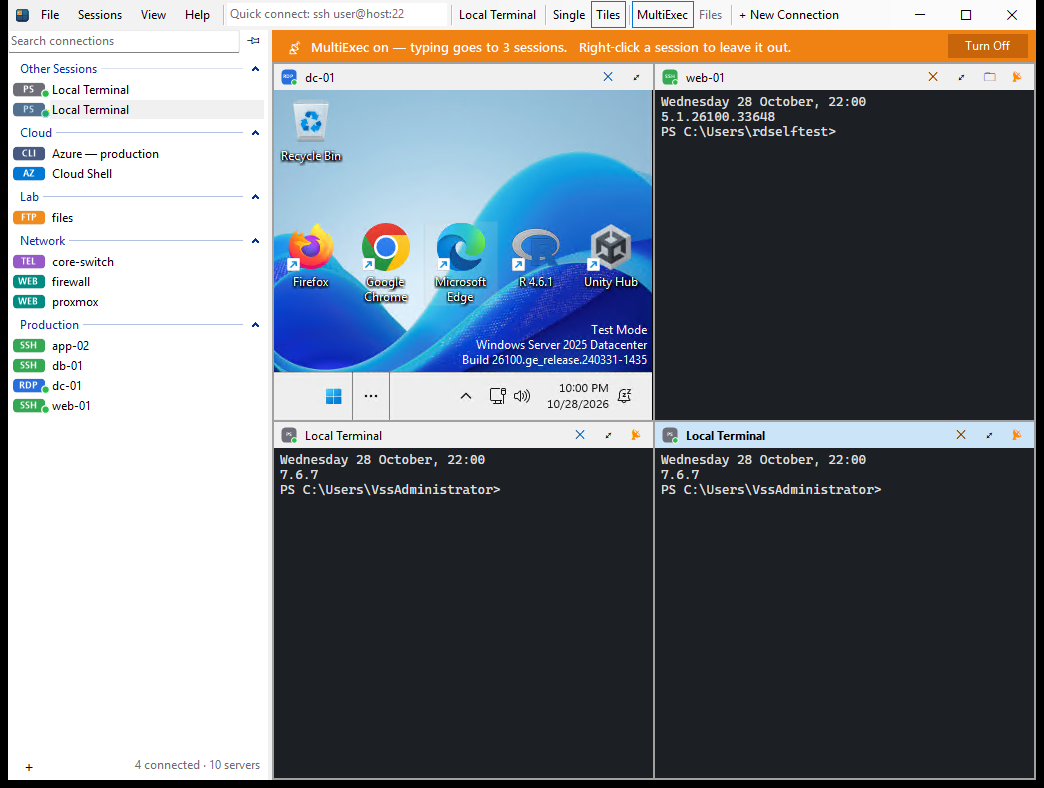
Made for looking after many machines at once
Tiles
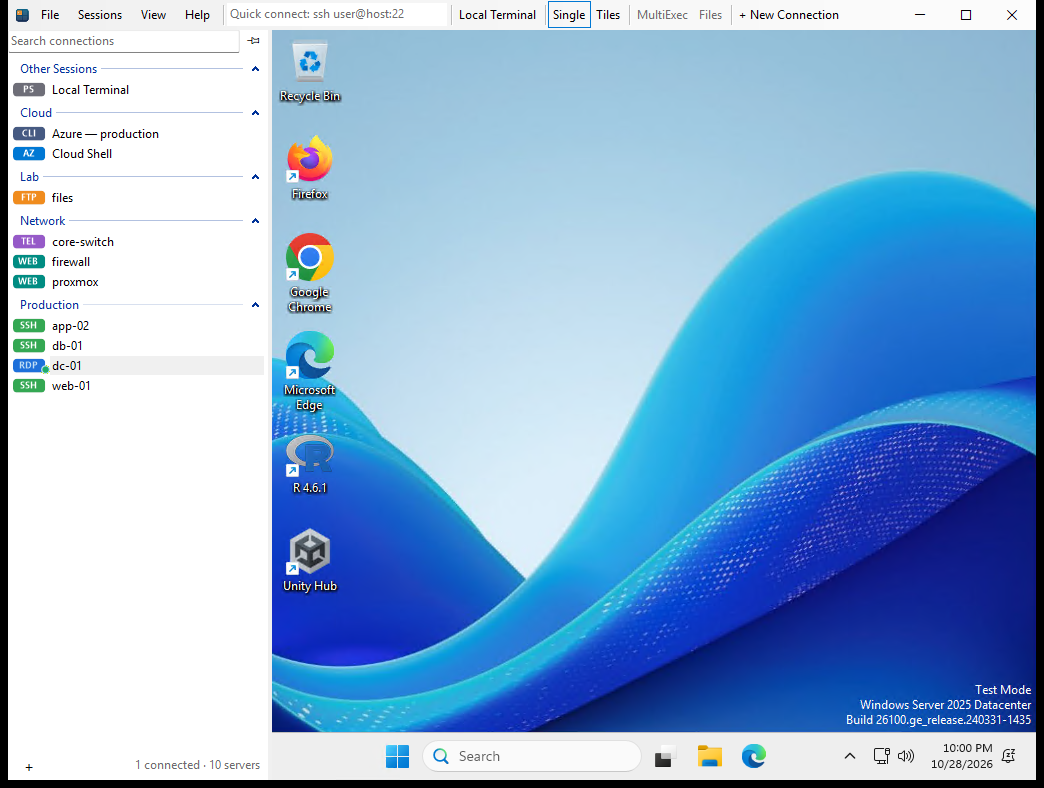
Show every open session side by side, or one at a time. Switching never restarts a connection.
MultiExec
Type once, and it goes to every open terminal. Leave out the ones you don't want with a right-click.
Connect a whole group
Put servers in groups like Production or Lab, then right-click any of them and choose Connect All to open the whole group.
A terminal on this PC, always one click away
Local Terminal is always at the top of the list: double-click it for a PowerShell window next to your servers.
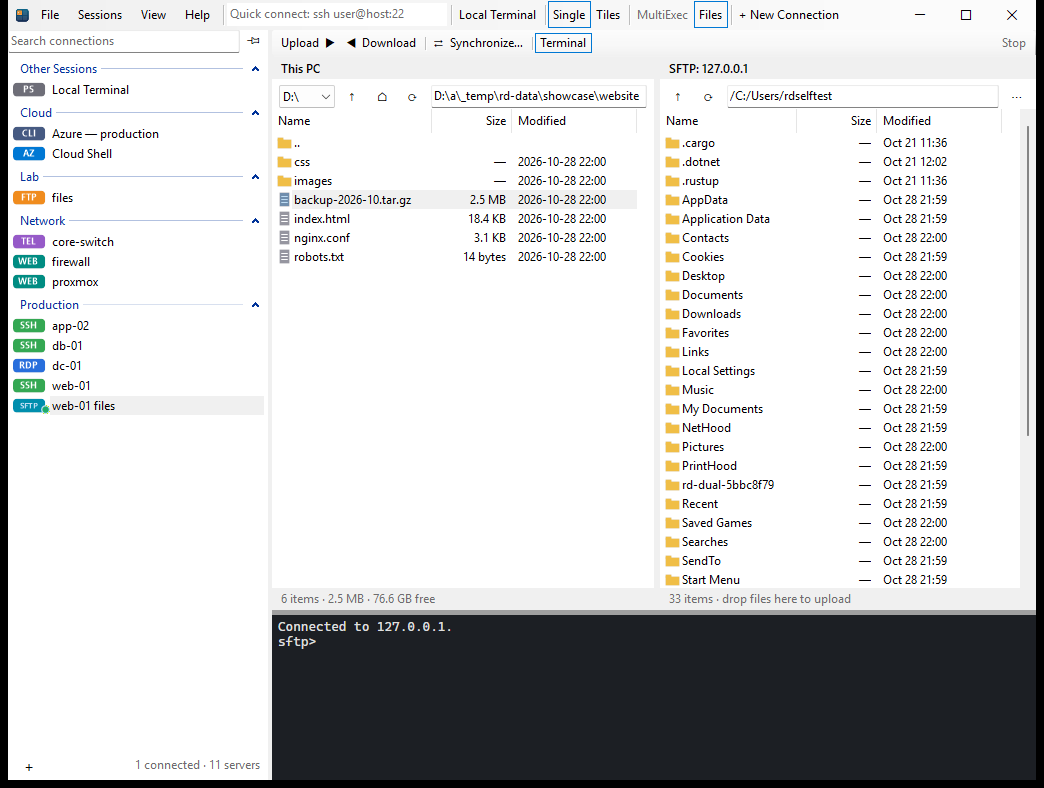
Move files like in a file manager
This PC on the left, the server on the right
FTP and SFTP connections open as two panes. Copy either way with Upload and Download, F5, or by dragging from one side to the other.
Synchronize
Compare a folder on your PC with one on the server, see exactly what would be copied, untick what you want to leave alone, and copy only what's missing or changed.
Nothing replaced by surprise
RemoteDeck asks before it replaces a file, deletes on your PC go to the Recycle Bin, and Synchronize only deletes when you tick it.
Files next to the terminal, too
SSH sessions keep a file browser beside the terminal (Ctrl+Shift+F).
Web consoles that sign you in
Passwords filled in for you
Save the user name and password with a web connection (or sign in once and choose Save). RemoteDeck fills them into the login page — also the two-step kind that asks for the user name first.
Auto sign-in
With the Auto sign-in switch on, RemoteDeck also presses Next and Login, so Proxmox, your NAS or your router opens signed in.
Only on the right site
A password is only ever filled into the connection's own address — never after a redirect, into a look-alike site or into a frame.
Consoles in their own window
When a page opens a window — like Proxmox's Upgrade, Shell or Console — it opens as its own window above RemoteDeck, and the dashboard stays where it was.
Bring your servers with you
Import what you have
Read your OpenSSH config and Remote Desktop Connection Manager (.rdg) files.
Quick Connect
Type
root@10.0.0.5,rdp dc01orhttps://192.168.1.1:8006and press Enter.Move to another PC
Export every server and setting to one file. Passwords come along only if you choose, encrypted with a password of your own.
Always the current version
RemoteDeck checks for a newer version when it starts and updates itself before it opens.
Every version is built and tested automatically before it is published — dozens of checks run the real app against real SSH, SFTP, FTP, Remote Desktop and web servers — and it reaches your PC only with RemoteDeck's digital signature.
Your passwords stay on your PC
Saved passwords go into Windows Credential Manager, the same protected store Windows uses for its own sign-ins.
They are never written to RemoteDeck's files and never sent to remotedeck.net. SSH passwords are handed to
ssh directly instead of being typed into the terminal, so a sudo prompt or a jump host can't receive them,
and web passwords are only ever filled into the site they were saved for.